
 English
  Português
 Español
 Français
 Deutsch
 Italiano
How to record meetings and never miss a detail again
Discover how Kloel AI's meeting recording feature can transform your virtual meetings with automatic transcription, summaries, and interaction with AI.
Publicado em 5 de fevereiro de 2025
In today's fast-paced corporate environment, information overload and multiple responsibilities can compromise our full participation in meetings. Distractions, competing tasks, or low engagement can cause important details to be missed, negatively impacting productivity and decision-making. With this in mind, Kloel AI developed an innovative meeting-recording feature that not only records your video conferences but also generates automatic summaries and transcripts. In addition, our artificial intelligence lets you ask smart questions during the meeting, ensuring no detail goes unnoticed.
In this article, you'll discover how this tool can transform the way you manage your meetings and learn, step by step, how to set up and use recording with Kloel AI on platforms like Google Meet, Microsoft Teams, and now Zoom.
Why use meeting recording with Kloel AI?
1. Capture Every Detail Accurately
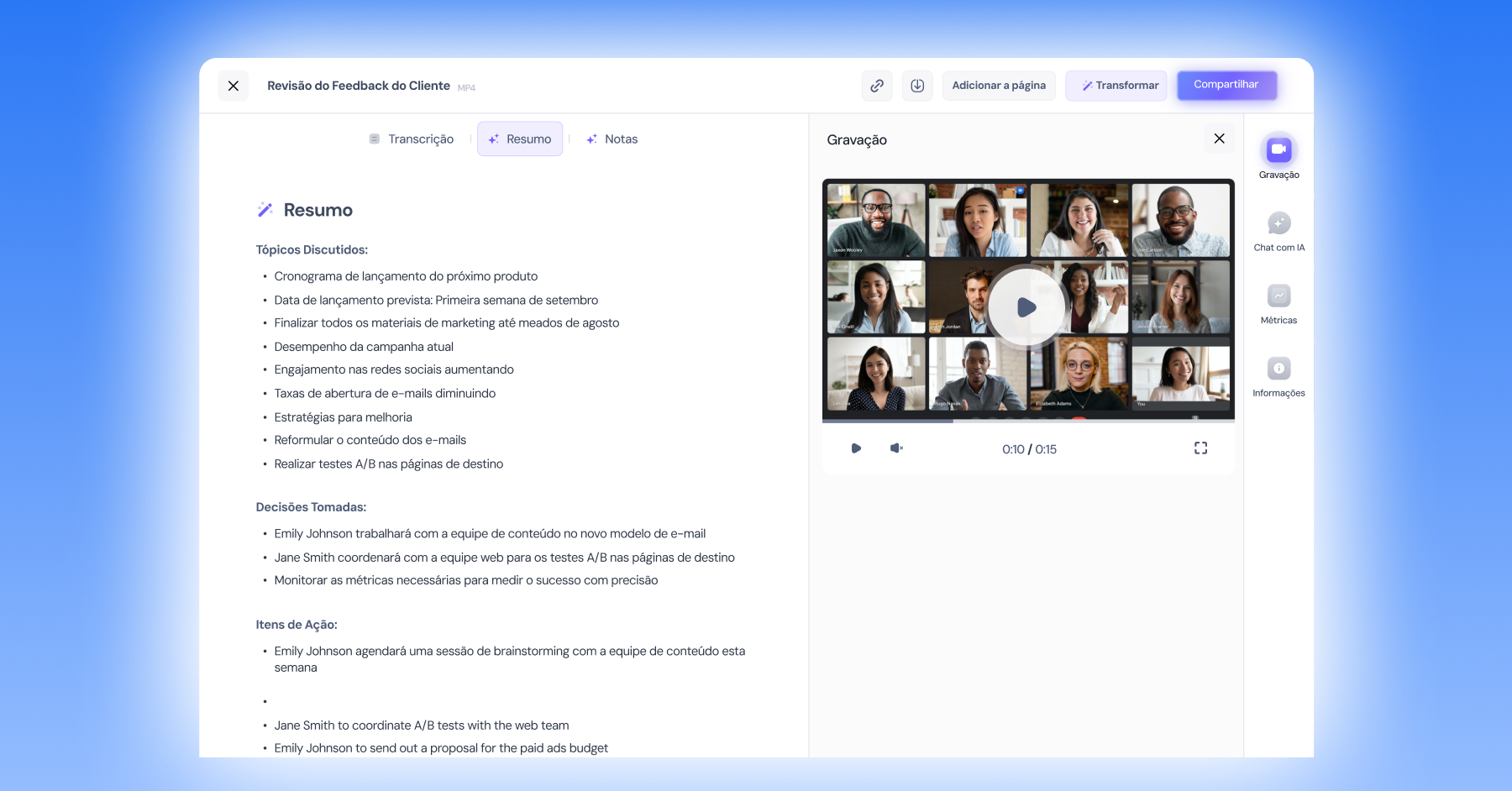
The Kloel AI meeting assistant joins your video conference and records the entire meeting. After it ends, the system processes the recording and generates a detailed transcript, which is stored alongside the video. This way, all your meetings are saved, and you can access the written content later, making it easier to review and follow up on discussions.
2. Get Automatic Summaries
After the meeting, our tool generates an automatic summary, highlighting the most important points. This feature helps save time and ensures that all participants are aligned on the decisions made.
3. Artificial Intelligence for Interaction
Unlike other meeting recorders, Kloel AI offers an exclusive feature: interactive chat with artificial intelligence. This feature lets you ask specific questions about your meeting's content, such as "What is Pedro's priority for the week?" The AI analyzes the meeting transcript and summary, providing accurate answers and making it easier to access the most important information.
4. Compatibility with Leading Platforms
Versatility is one of our greatest strengths. Now, in addition to working seamlessly with Google Meet and Microsoft Teams, Kloel AI is also available for Zoom, so you can record meetings on the leading platforms on the market.
Step-by-Step: How to Record Your Meeting with Kloel AI
Step 1: Schedule Your Meeting
- Compatible Platforms: Make sure your meeting will take place on Google Meet, Microsoft Teams, or Zoom.
- Initial Setup: You'll only need the meeting link, e.g.: https://meet.google.com/wnp-wcik-mnf

Step 2: Access the Meetings Tool in Kloel AI
- Go to Meetings: In the left-hand side menu, click "Tools" and then "Meetings"
- Required Permissions: The meeting recording feature is exclusive to Ultra plan subscribers. Find out more about our plans here
Step 3: Schedule the Assistant
Schedule a Meeting: In the upper-right corner, click "Schedule a meeting" and fill in the information below:
- Meeting Link: This is the video conference link, e.g.: https://meet.google.com/wnp-wcik-mnf
- Meeting Title: This is the title you choose to save your meeting on the Kloel AI platform.
- Time: At this step, you can choose "Record Now," in which case the bot will join your meeting within 30 seconds, or you can choose "Schedule a Time" and select the date and time for the bot to join your meeting.
- Required Permissions: The meeting assistant "Kloel AI Bot" needs permission to start recording. When you're in the meeting room, remember to allow our bot to join the meeting.
- Note: You don't need to be the meeting host to use the bot in your meetings. You only need to accept the bot's access, and it will start recording.
Step 4: Start the Meeting
Automatic Entry: The Kloel AI bot will join the meeting automatically. This process may take about 30 seconds after the scheduled time. Once the bot requests access to the meeting, simply admit it.
Step 5: Finish and Access the Summary and Transcript
- Post-Meeting Processing: After the meeting ends, wait a few minutes for Kloel AI to finish processing the data.
- Access the Content: Get the summary and transcript directly on the Kloel AI platform, on the "Meetings" screen.
Watch our video tutorial on how to optimize virtual meetings with AI
https://intercom.help/Kloel AI/pt-BR/articles/10309960-otimize-reunioes-virtuais-com-ia
Conclusion
Meeting recording with Kloel AI is a complete solution that goes far beyond simply recording audio and video. With advanced features such as automatic transcription, summary generation, and intelligent interactivity, our tool becomes indispensable for teams seeking efficiency and precision in communication.
If you want to take your meetings to the next level and ensure that no detail is missed, try meeting recording with Kloel AI. Also enjoy compatibility with Google Meet, Microsoft Teams, and now Zoom, and transform the way your team communicates!